
This read me will explain the user interface for you so you can get started instantly with your data gathering right away. Watch the introduction video below if you have not seen it yet. It will help walk you though your first scrape and show you how to get started. Its a big ReadMe so make sure you read though all of it!
Jump To:
Proxies | Using Lists | Saving Data | Advanced Settings | Advanced Tips | FAQ | Billing
Introduction Video
##### Please see the FAQ and Trouble Shooting Sections before contacting email support! #####
Quick Start Guide
Scrape Target: Is where you choose which site you would like to scrape. You can currently only scrape one site at a time. Just click on the site name to select it.
Single Keyword Search
Location: This section is for a single keyword search. This is where you will enter the location to search. You can do this by either entering a city or zip code for your search. Examples: Miami, Florida or Miami, 33068 or Miami Florida 33068 or Miami Florida you get the idea.
Keyword: This is where you will enter your keyword to search for, this is the type of business that you are looking for. Examples: Plumbers or Roofers or Mexican Restaurants or Dog Groomers
The Scrape Targets
Below are the current scrapers that Local Scraper supports and their descriptions. If you have purchased Local Scraper your have access to all the scrapers listed below.
| Scraper Name | Global Results | Multi-Thread Scraping | Multi-Thread Email Finding | Uses Browser | Requires Proxies |
|---|---|---|---|---|---|
| Google Maps Quick | |||||
| Google Maps Full | |||||
| Google Places | |||||
| Yahoo Local | |||||
| Yellow USA Full | |||||
| Yellow USA Quick | |||||
| Home Advisor | * | ||||
| Email Finder | |||||
| Bing Maps Full | |||||
| Bing Maps Quick | |||||
| Yellow AU | |||||
| Yellow DE |
Proxy API / Rotating Proxy / VPN
When you are scraping using Local Scraper the sites that you scrape are able to see your personal IP address. If you scrape enough they will notice your activity and block or ban you from their site. They do not like scrapers accessing their site so you will want to protect yourself using one of the options below. There are benefits to all options so please read this and compare it to your personal needs. If you have no idea what to buy email me at suport@localscraper.com what your plans are and I can help.
The world has changed and so have proxies. No one wants us scraping them and more and more security is popping up all the time. Just as fast as this security is added some service offers to solve it. A Proxy API is a service you pay for where you tell them the page you want to scrape and on their end they figure it out, then give you back the page. These services will solve captchas, get around cloudflare, and even load in virtual browsers.
HomeAdvisor now has CloudFlare anti-scraper protection so you have to use one of these services to scrape them at all. They can also be used in all multi-threaded scrapers such as Yahoo Local
I am currently using ScraperAPI, but ScrapingBee also works well. ScrapreOps is supported but can sometimes be slower than the other two.
To use these services put your API Key they provide into the ProxyUser box, then put the name of the company in the ProxyPass box. For example "ScraperAPI", "ScraperAPI.com", "ScrapingBee" etc.
Rotating Proxy Providers are much like a normal proxy provider and will give you a unique IP address each connection. The difference is that with a single provider you pay for access to thousands of proxies as a service instead of paying per proxy. You never see the lists of proxies, you can only connect to one or two ip addresses. When you make a connection the IP Address is changed on the backend by the proxy provider. This means if you are running the program with 8 threads and a single proxy provider then each thread will have its own unique IP address. If you are doing any level of heavy scraping this means 5+ full scrapes a day this is a good option. The more you have the better. Each connection will look like a different computer visiting the target website so it will spread out your scraping making it less noticeable.The only problem with this system is many of the proxies may be not a fast which means they may opperate very slowly. The program will continue to retry to load the pages until it is successful but it may take a while until it finds a proxy that will work. We are currently using SmartProxy and StormProxies. We use the Datacenter Proxies from both of these services.
A VPN will hide your personal IP address when scraping but it only gives you a single IP address per connection. If we use the same examples as above this means that with 8 threads all 8 threads will have the same IP address. This is not good enough and you will be caught at some point. You personally do not get banned but the VPN IP address might. So if you are going to be using a VPN for your scraping you can only use 1-2 threads at most. What a VPN is good for is very small amounts of scraping, cost, and no multi-threading. So if you only plan 1-4 scrapes a day a VPN may work for you. A VPN works great for Google Quick and Google Full because it gives you the ability to connect to a server in the region you are scraping. If I am scraping Florida I would use a Florida VPN.
A VPN is good for Google Maps, Yahoo Local, Bing Local, and any 'Quick' scrapers.
Using Proxies
If you are going to use proxies please check the "Use Proxies" checkbox. You will then need to tell the program where your proxy list is.
Proxy List: This should be a text file of your proxies, one per line in the format of ip:port. Just browse to the file on your computer. If you are using a rotating proxy provider you still need to make a proxy list even though there is only one IP to connect to.
If you have a username and password for your proxies please enter it into the program options. (Note: Scrapers that use the Chrome browser can not use a proxy username/password you MUST use IP Authorization.) We also recommend you enable IP Authentication with your provider if possible to make sure everything will work.
Your proxy file should look something like this.
192.168.10.1:80 192.168.50.2:80 192.168.40.3:80 192.168.20.4:81 192.168.40.5:6900 192.168.30.6:8080
Using A Rotating Proxy Provider
SmartProxy is a back connect proxy service which means you make a single connection to their service and they will change your IP address on every connection. This system works exactly like normal shared proxies but will give you access to a massive pool of proxies. Usually tens of thousands of proxies are in these pools, far more than you could ever buy from a shared proxy provider. For example, the micro package at SmartProxies is $75 per month, it gives you access to tens of thousands of shared proxies. At ProxyBonanza $75 per month will buy you 250 shared proxies. If you would like a cheaper option goto the StormProxies section below, they rotating proxy service starts at $14/mo.
To use SmartProxy with Local Scraper you will need to login to your SmartProxies account and do three things.
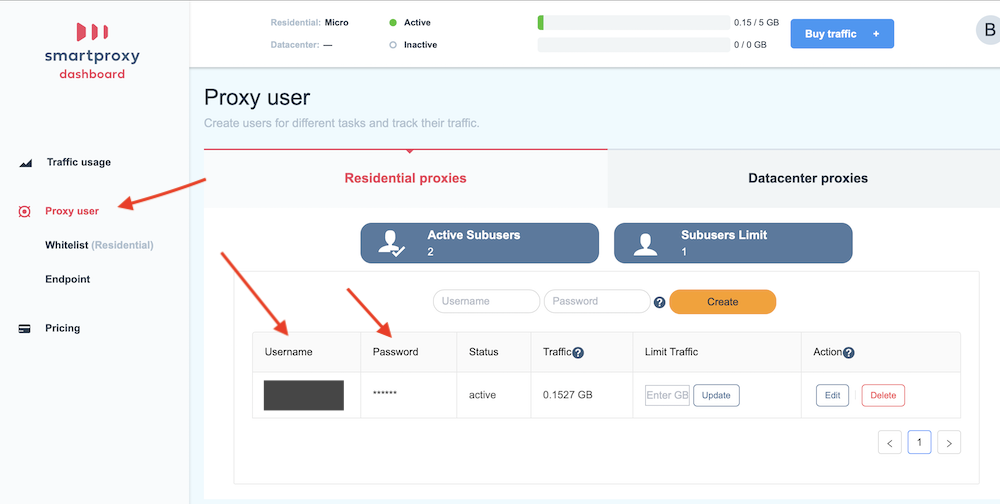
First is to get your username and password for their service, you can find this under the “Proxy User” link. You may want to change the password as well. Make sure you have access to the username and password because you will need to enter these into Local Scraper.
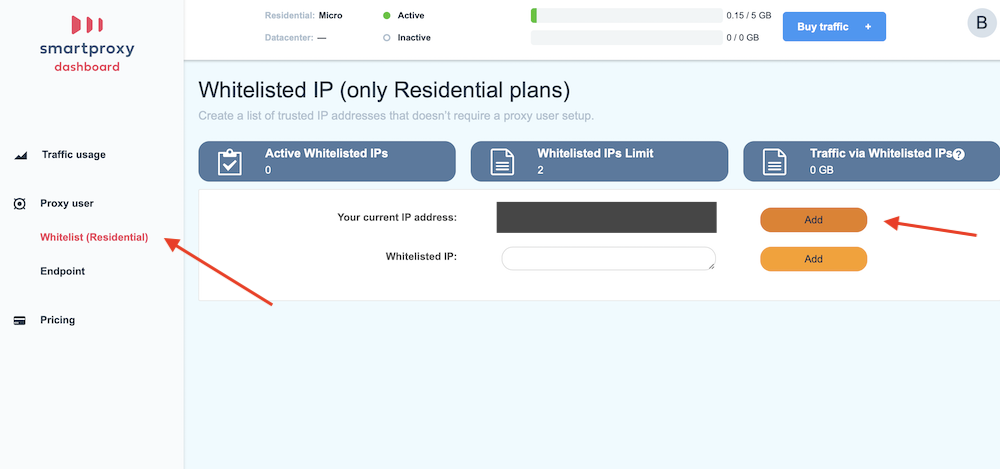
Second is to set your IP address as whitelisted. Click on the link on the side that says “Whitelist” then on the right side of the screen you will see a line that says “Your current IP Address” click the “Add” button that is on this line. Your current computer is now whitelisted, which means you will not need the proxy user/pass from the first step. But I always recommend doing both steps just in case.
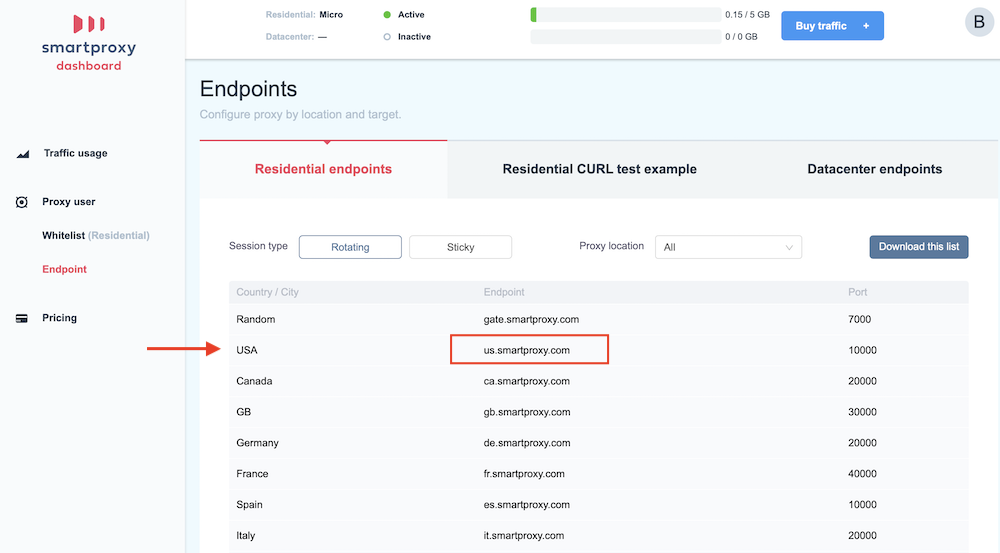
Third you will need to get the single proxy “Endpoint” that you will connect to. You can find these under the “Endpoint” link on the left side. Once you have clicked on Endpoints there will be a lot of options on the right. You will probably want to stick with the US option in you are scraping USA listings. If you are scraping Yellow Canada you may want to use Canada but it is not needed, USA will also work. At the time of writing this the endpoint is “us.smartproxy.com” and the port is “10000”. To use a single proxy, you will need to make a proxy list but it will only have 1 line. Make a new plain text file (in NotePad) and put “us.smartproxy.com:10000” in the first line without the quotes. Save the file somewhere because the program will need to access it.
In Local Scraper you now open the Options Tab. On this tab you will enter your proxy username and password from step 1, or you can try to leave this blank if you did step 2. You will need to tell the program where your proxy list is located. You also need to check the “single proxy” option so the program knows your list only has one line. You can now set the other options in Local Scraper you would like to use and begin your scrape. Your activity will now be hidden from the sites, and you should be able to scrape more and for longer.
Using StormProxies
Much like SmartProxy StormProxies is a back connect proxy provider which again menas that you connect to 1 ip address and they rotate between tens of thousands of proxies on their end. The diffrence is basicly service level and price points. If you want to purchase from Storm I recomend the "Dedicated Rotating Proxies" found under the "Rotating Proxies" menu at their site. The $14/mo package is their "testing" package which you can find under the pricing table.
To get started once you sign up you will be taken to a Member Area page. On this page at the top is a few buttons, "Add/Renew Subscription" "Dedicated Proxies" "Backconnect Rotating Proxies" "Residential Proxies" and "Profile". You will want to click on the serivce you chose when you ordered. Which is either Backconnect for Residential.
After you click the service button you will be taken to a setup page for the proxies. (Second image below). Here you will need to give them you IP address of the machine running the scraper in the "Authorized IPs" section. You should then check "Worldwide (best for scrapping)". After you put the computers IP address and check Worldwide press the "Save Settings" button.
Next we need to make a plain text file in NotePad (this comes with all versions of windows). Just make a new empty file and paste in the IP address from "Main Gateway" into file and save it.
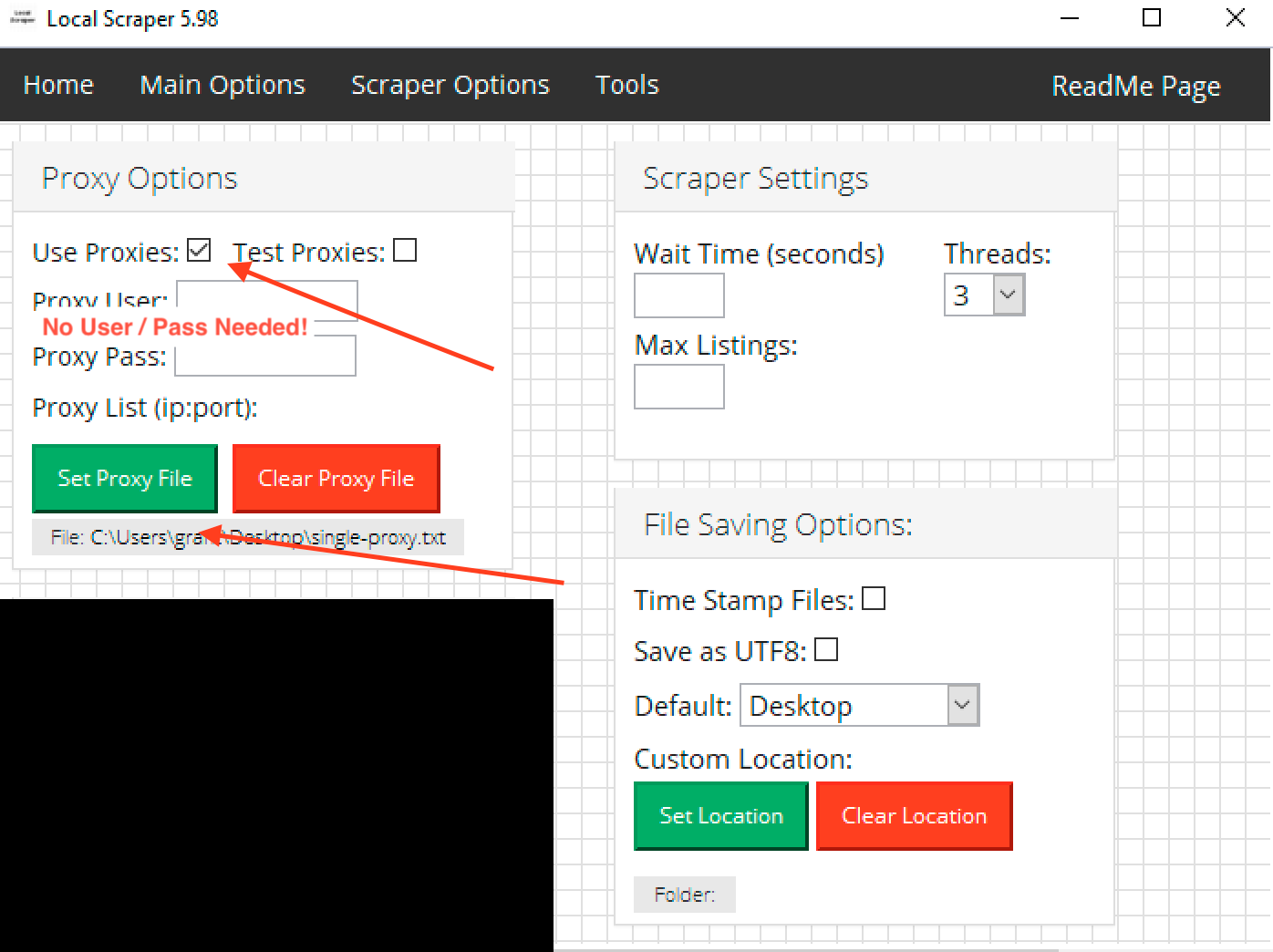
Back at Local Scraper Scraper you now only need to tell it where this text file is. There is no user/pass so one will not be needed.
If you are having trouble see the images below.


Scraping from Lists
Local scraper supports automated scraping from lists of keywords/locations and search result pages called 'Custom URLs' in the Scraper. Please make sure to leave "Location" and "Keyword" blank if you are using a keyword and location list. If you have a single keyword and a list of locations, then give the program your list of locations, and enter your keyword into the single keyword box. The program will auto match the keyword to each location. If you have a list of keywords and a single location this will also work. If you had a single keyword or single location used with a list and the program gives you an error saying your lists do no match. Simply delete your single keyword or location and re-enter it. You can not give the program with lists of diffrent lengths. It will not calculate all possible variations across the two lists.
Location List: This will allow you to browse to your text list of locations. These should be cities or zip codes in a normal text file one per line. Use as much details as possible for locations. You may want to include the state and country as well.
Example:
90210
33704
33040
55416
Keyword List: This is where you will browse to your list of keywords. Keywords need to be in a text file and one per line. They must line up with the location list. Line 1 to line 1, Line 2 to line 2.
Example:
Pizza
Plumbers
Roofers
Rental Cars
Note you must have a location and keyword for each line on both files if you are using 2 lists. They must match in length. The program will only match line to line between the files. This means keyword list line 1 to location list line 1, keyword list line 10 to location list line 10 and so on. The program will not mix and match between lines. If you only have 1 list like a single keyword(in keyword box) and multiple locations the program will create a hidden list to make them match in length and run your single keyword on all locations. Same for a single location(in location box) and a keyword list.
Saving Scraped Data
Local Scraper will automatically save data scraped. There is nothing that you need to do for file saving. If you are not seeing data in the csv file it is because you have stopped the scraper to soon or you have a windows user permission problem.. In the user interface there are two stats to keep your eye on "Records Found" and "Current Record". Records found is how many records the bot has found and is going to scrape. Current Record is how many records have actually been scraped.
So if Records Found says 200 and Current Record says 2 then your csv file only has 2 records saved in it. The bot would still have 198 records in que. If you stop the bot at this point by pressing the stop button your csv file will only have the 2 records and the que will be lost.
If in the above example you wanted the bot to scrape all 200 records found then just let the bot run until it stops. You will know the bot is done when the pause and stop buttons are gone. Current Record will also be the same number as Records Found.
If you do not see any save files then you may have a windows permission problem. This basically means that the program is not allowed to save files. You have a few options here. You can try to right click the program and select "Run As Administrator", and you you can change the folder where data is saved in the options.
Always check your scraped data before use! Things go wrong from time to time and it is important that you confirm the data before you get in to deep. When I scrape I always look at the csv after and check a sample of the data. If I have 1,000 results I will check to make sure its correct every 20 or so results. If its not correct please contact support with as much info as you can so we can see what went wrong. We are not responsible if you use the data without checking to make sure it is correct.
Main Options / Scraper Options Tabs
Max Listings: This limits (roughly) the number of listings the bot will gather. If you only want 50 out of 1000 then set this to 50. The bot will stop at around 60-70 listings and start gathering data. You will no longer have to gather all 1000 listings before gathering data.
Threads: This is the number of connections you want to make at one one time. Think of them as one or more bots each visiting the site. The higher the number the faster the program will run, but this also means more connections which may get you blocked or banned from a site. If you have proxies I recommend you set it to less than half the number of your proxies at most. Personally I never use more than 10 proxies to keep the program stable and to keep my proxies alive. I have 200 proxies and I use 8-10 threads on average. If you do not have proxies I would keep it at 3 or less.
Wait: Wait will allow you to slow the program down. This is the time in seconds before you load a new page. So if you have no proxies and want to avoid getting blocked set this a little higher to say maybe 10 seconds. That means the bot will wait 10 seconds before it loads a new page. Yes this will slow the bot down but it also makes the bot look more human to the site. If you have proxies but they are a little slow then you can use this wait time to allow them to connect or load the page. It will take a little trial and error to find out what works best for you.
No Chrome Proxies: Use this if your proxies do not support IP Authorization and you want to uses scrapers that use Chrome. Your proxies will be used for Email Finding with this option but will not be used with the Chrome browser.
Time Stamp Files: This option adds a data and time to your save files. Its great for if you want to scrape the same thing over again without having to worry about accidentally replacing your old scraped data.
Save Folder Location:You can now choose where you want to save your files. If you select nothing here the files will be saved in the same folder as a the program. If you choose your desktop in this option they will save to your desktop.
Find Emails: If you turn on this option the scraper will visit the website of the business. It will then search the home, about, and contact pages trying to find a Email, Facebook URL, Twitter URL, and Instagram URL. There is no exact layout of this kind of data so it tries its best to find it. It will not work 100% of the time. It might not work at all! This all depends on what type of business you were searching for and how tech savvy they are. Plumbers wont link to their Facebook or Twitter Pages. New websites also use scripted contact forms instead of giving out emails on page.
Force English Language (Google Full/Quick): If your native language is not English (based on IP address location) you can use this option to force google maps to give results in English only.
Disable 'near' in Search (Google Full/Quick): By default the program will search for "Keyword near Location" when scraping google maps. If you check this box it will leave out the 'near' and only search for "Keyword Location". You can then add anything extra after your Keyword to make custom searches. If your keyword was 'Keyword In' it would produce "Keyword In Location". Use this if you have terms in your native language you want to use or custom search results.
Hide Browser: This setting will put Chrome in 'Headless' mode and will hide it from your screen. Use this if you dont want to watch the program working. Some sites may be able to detect 'Headless' mode though so use with caution.
Save Settings/Load Settings: These options will save your current settings from both Options tabs and the Tools tab. Once saved, you can reload them at a later date.
Manual Save: This is an emergency system to force a file save. If you have results in the data table but no save file has been saved you can go to the Options tab and change the save location, then come back to the Tools tab and press this button to try to save the data.
Ignore Duplicate Listings: This system only supports second pass scrapers like Yahoo Local or Yelp Full. You can use this if you are using lists for multiple search automation and want to save time/data by ignoring pages you have already visited. Works great for similar searches in the same area.
Play Finished Sound: This option will play a sound when the scraper has finised.
Advanced Tips
Faster Scraping Did you know that you can simply open another copy of the program? Just open the program again and a new copy of the program will popup. This new copy has no links to the original and can control its own browser. Use multiple copies of the program to do their own scrapes, divide the original work in half across two copies and suddely you are 2x as fast! How many copies you can run really depends on the specs of your computer, 2 is usually safe for everyone. But some customers have shown me that they had 8 copies of the program running on one computer! You will need to do a bit of trial and error to figure out what works for your needs. I can't say how many copies you can run in total, but its something to think about if you want to spread the work out more and get faster results. Remember though you will probably need proxies to use multiple copies if you use any scraper other than the google maps quick, full, and places scrapers.
Getting More Data The sites we scrape all have some sort of results limit. Like for example Google Maps is 200 per search. The key to getting around these limits is to simply do more searches. As each search can return 200 more results. The best way I know to do this is to break down your target location into a smaller area. Anything that is recognized by the target site will work. For example if you searched for Cafes in New York, NY you would only get 200 results on Google. But if you searched for Cafes in Brooklyn, Cafes in Manhattan etc each of the 5 burros would return 200 results. So you can have 1000 results now. But what if that is not enough? What if you want every single cafe in New York. Time to use a smaller location. For something like this I would recommend finding a list of all of the zip codes that are in New York. Now your going to want to use our lists features and have the scraper search for cafes in every zip code in the City. Each zip code could return 200 results. New York has 176 zip codes so now you will have scrapped 35,200 listings. You can now combine these csv files and remove duplicate listings that may have over lapped. Your final csv should be a very detailed scrape of the target city. This works for everything. If you are targeting a state then try cities in that state. If your at cities try zip codes, districts, neighborhoods, cross streets. Any sort of location should work. The key is to search smaller and smaller until you get the results you want.
Use Custom URLs If you have a custom url from one of the sites that we scrape you can use it. This includes filters or custom settings provided by the website. Just set up your custom url in the site you are using in your browser. Make sure the page has the SAME LAYOUT as a normal search page. E.g. It shows the listings 1-10 and has a "Next Page" button of some sort at the bottom. To use your custom URL use the same method as mentioned above. Use a normal non-list search for your target site. Pause the bot when the page loads (you have 2 seconds to do so). Enter your url into the browser bar and hit enter. Wait for your new custom page to load and then hit Play on the bot again. The bot will now use your custom URL with filters or whatever you changed.
Large Scrapes To scrape huge amounts of data you will need to break down the data into smaller scrapes. I tell users with big cities/regions to break the search locations down into zip codes. Once you have your zip codes use the list function mentioned early in the readme to load the zip codes into the scraper. Run the bot and let it complete the list (this will take a long time). Now you will need to combine all of the csv's into one giant file. With the giant file you will need to remove duplicate entries since some searches will overlap into other areas. Your final result should be one giant list of the city/area with each line being a unique business/location. This method is required for anywhere where you need more than 1,000 results.
F.A.Q
Q. How can I get invoices for my payments or change my payment method?
If you did not pay though PayPal then you can use this link to access your payment profile, update your details, and download invoices http://localscraper.com/customers.php
Q. How can I combine all of my CSV Files? Where is the CombineCSV Script?
The latest copy of CSV Combine is here. This program can combine your output files, remove duplicates, and export data based on the selected columns that you want. Please make sure files are all from the same site and have the same number of columns!
CSV Combine Windows
CSV Combine Mac ARM
CSV Combine Mac Intel
Q. How do I get a Home Advisor Custom URL?
You must visit http://www.homeadvisor.com/c.html and do your search there. Once you have a search results page you want, copy its URL from your browser address bar and paste it into the program. Here is an example of what a custom url looks like https://www.homeadvisor.com/c.Roofing.Pompano_Beach.FL.-12061.html?zipSearched=33068
Q. How can I exclude certain columns of data? I only want a few columns of data not all of them.
Please use the new CSV Combine program linked to above to remove columns of data from output files. It can not be done inside of LocalScraper.
Q. My Excel file has lots of empty or blank rows of data.
A. This is usually caused by the page loading to slow or not at all. This means that the when the bot tried to scrape the page it had not loaded yet or wasn't there. This is caused by a few things. 1) A slow connection. If your internet or proxies are slower set the Wait time to higher to accommodate the load times. Default is 2-3 seconds so go higher than that. 2) A different page showed up than what was expected. Maybe your IP is temp blocked or banned, maybe the proxy is blocked. Could be many things. So if the Wait does not fix it try changing your IP address. If its your home/work connection you will need to purchase proxies or a vpn. 3) Is that maybe you are going to fast with your Threads. I had a user that had all blank rows because he was using 20+ threads and his computer simply could not handle it. By having him switch to 8 threads the problem was resolved. The video below goes over these things a bit more.
Q. Where can I download the latest version of Local Scraper?
A. The latest version can always be found at the links below
Windows Installer: https://www.LocalScraper.com/download.php
Windows Portable: https://www.LocalScraper.com/portable.php
Mac ARM Installer: https://www.LocalScraper.com/download-mac.php
Mac Intel Installer: https://www.LocalScraper.com/download-intel-mac.php
Q. The site I am scraping says '3000' or '5841' or some other large number of results found but the scraper stopped at 1000 or 201. What happened?
A. The sites we scrape all have some sort of search result limit. They 'say' they have 3,000 results or more. But in reality they only show the user 1,000 at a time. This is not a problem with Local Scraper but a limit we have to work with. When the bot gets to the last page of results then it starts the second stage. This means that there is no "Next Page" button to even seen results past 1,000. If you would like to get more results than given you will need to break down the search into a more targeted area as mentioned in the ProTips section. To see this problem your self go to the target site and do your search in your own browser. Hit the next or page next button to go though the results and see how far it lets you get personally. Its not the bot its the site tricking you into thinking there are more results. For example Yelp.com at most will give you 10 results per page for 99 pages.
Q. Can I scrape the entire US?
A. Local Scraper is not designed for such a large project. We designed it to gather data from small areas at a time. Start with zip codes and small cities, combine that data into regions, regions into states and so on. But you should always scrape small amounts of data. Given enough time, proxies, and work you could in theory have a database that nation wide but this will be a monumental task. There exists no magic program that can do this for you. Its to big a task for any single program to do in a reasonable time. Start small!
Q. I keep keeping results from other zipcodes/areas when I am only targeting the one area!
A. This is a problem because the sites we scrape are all made for human users and they try for the best user experience. This means that they assume that maybe you don't really need a restaurant or plumber from the exact location you said. A normal user may be fine going to a place with better reviews just a little rather away. The only site that has a location filter that you can use is Yelp.com. If you do a search at Yelp.com in your normal browser (not the program) you will see a 'Filters' dropdown at the top of the results. Here you can check little boxes on the exact city names you want results from. Once you have filtered down the results to what you were looking for then you can copy the Yelp.com URL from the address bar of this browser and paste it into the program into the Custom URL box. When you run the program it will start at this url and see the exact filtered listings that you setup before. This is the only way you can filter locations in Local Scraper that is known right now.
Billing / Canceling Your Subscription
Local Scraper is a subscription product. You have either paid for a 1 year subscription or a 1 month subscription. Your subscription allows you to receive updates to the program and to continue using the program. This is a pre-payment system so you payment covers the future period of time. So for example if you would like to only use the program for 6 months and do not want to be billed again you can cancel your subscription anytime before your next payment is due. If you do not cancel your subscription payment you will be automatically billed though PayPal for the next 6 months or 1 year, which ever package your originally purchased will be used.
How to Cancel your Subscription
You can cancel your subscription at any time by clicking on this link. http://localscraper.com/customers.php
Here is a direct link to PayPal's FAQ on how to cancel a payment. The important details are pasted below as well.
You can cancel your subscription at any time by clicking the button below. This will display all active subscription you have with Local Scraper including other products you may have bought. Please make sure you cancel only the subsction that you want to and follow all directions on their site. If that does not work I have provided written instructions as well.
Click this button below to UnSubscribe.

You can also follow the directions below to UnSubscribe.
- Log in to your PayPal account.
- Click Profile near the top of the page.
- Click Payment preferences.
- Click Update next to "My preapproved payments".
- Select the merchant.
- Click Cancel, Cancel automatic billing or Cancel subscription and follow the instructions.
Support
If you need support please contact us at support@localscraper.com but please make sure the topic is not covered in this ReadMe first.